 Google Forms
How to Connect Gemini AI with Google Apps Workspace, YouTube, Maps & More (Complete 2026 Guide)

Learn how to connect Gemini AI with Google Workspace, YouTube, Maps, and other Google apps through step-by-step instructions for seamless integration and enhanced productivity.
This page may contain affiliate links. We may earn a commission at no extra cost to you. Full disclosure.
- 01Visit www.google.com and search for 'Google Gemini'
- 02Access the official Gemini site (gemini.google.com)
- 03Open Settings and Help from the lower left corner
- 04Navigate to Connected Apps section
- 05Review available applications and toggle desired apps to 'on'
- 06Click Connect and grant necessary permissions for each app
- 07Verify all connections show 'Connected' status in the list
Introduction
Connecting Gemini AI with your Google applications unlocks a unified ecosystem where the AI assistant works smoothly across Google Workspace, YouTube, Google Maps, and other essential services. This integration enhances productivity by enabling Gemini to provide contextual assistance informed by data across your entire Google footprint. By the end of this guide, you'll have linked all your preferred Google apps with Gemini AI, transforming how you work across multiple platforms.
This guide covers everything from accessing the Google Gemini platform to configuring individual app connections and verifying their functionality. You'll understand each permission request and connection setting so you can make informed decisions about which integrations serve your workflow. Whether you're connecting a single app or your entire Google Workspace suite, this tutorial provides the precise instructions you need.
Navigate to Google's Homepage
Open your preferred web browser—Chrome, Firefox, Safari, or any modern alternative—and visit www.
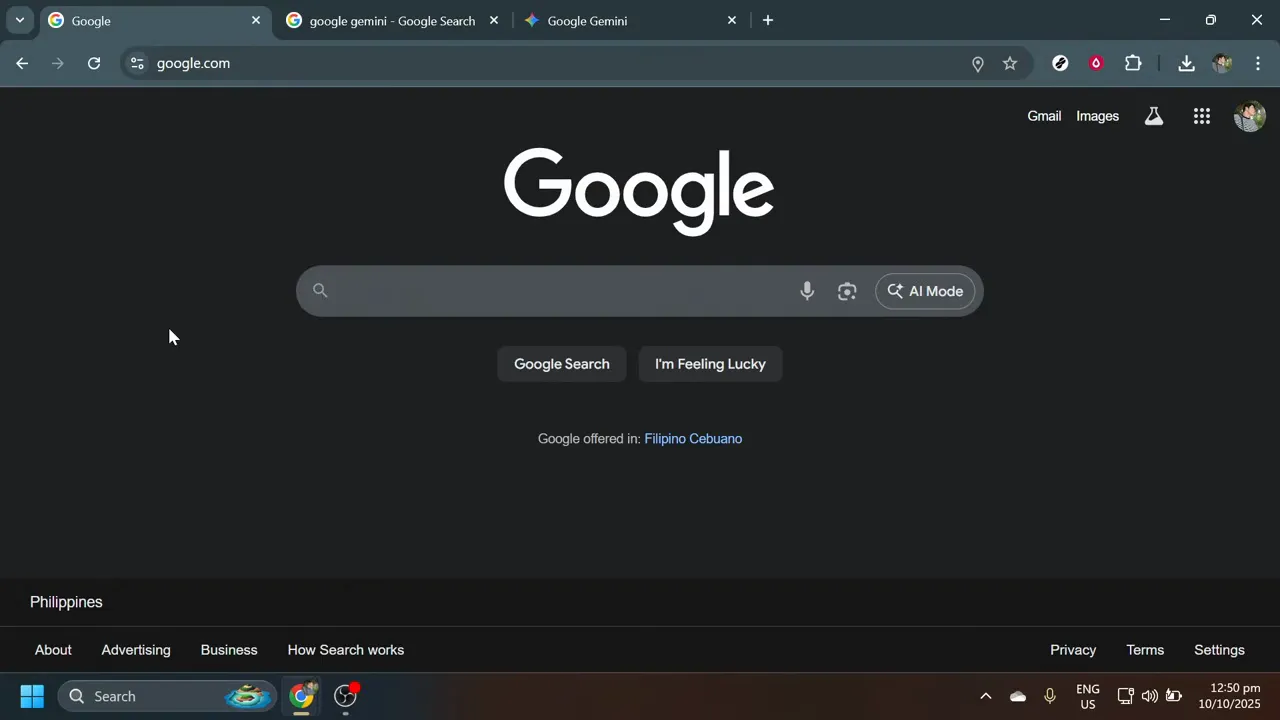
Open your preferred web browser—Chrome, Firefox, Safari, or any modern alternative—and visit www.google.com by typing the address into your browser's address bar. This serves as your starting point for accessing the various Google services you'll connect with Gemini AI. The Google homepage functions as the universal entry point to all Google services and provides direct access to the Gemini platform.
Search for Google Gemini
Locate the search bar in the center of the Google homepage and type "Google Gemini" exactly as written.
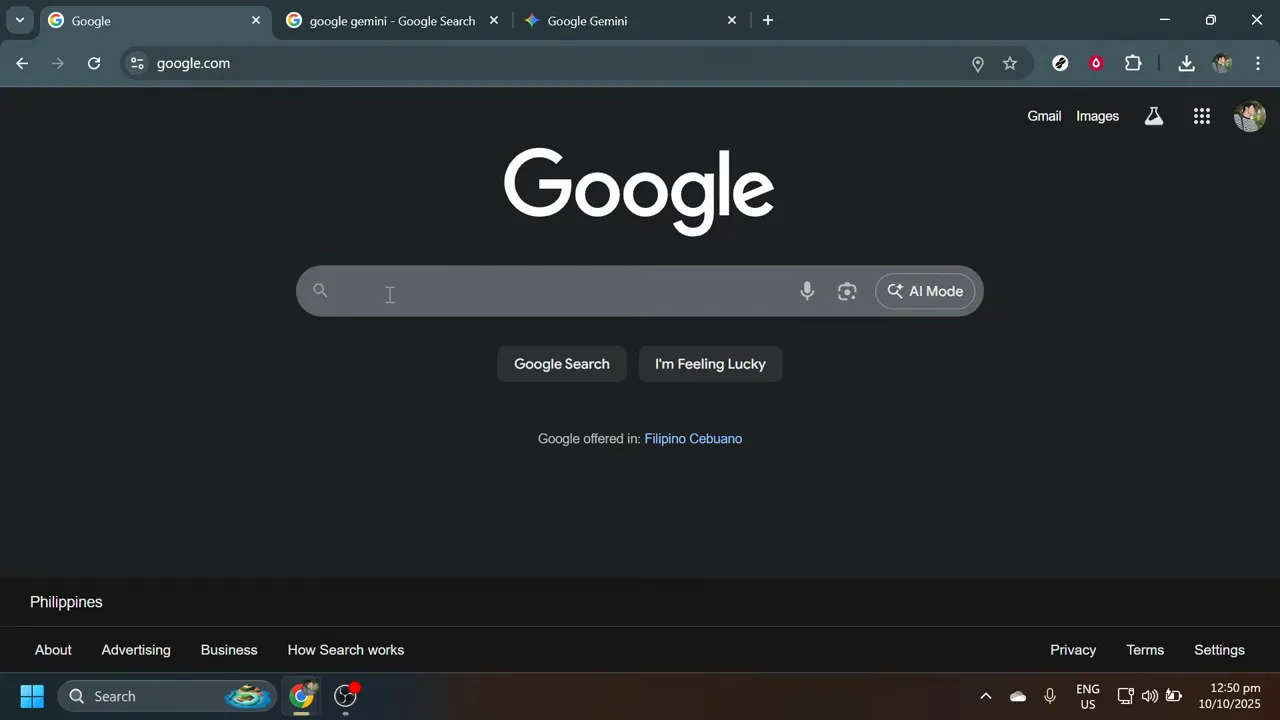
Locate the search bar in the center of the Google homepage and type "Google Gemini" exactly as written. Press Enter or click the Google Search button to execute your search. The results page will load within moments, displaying multiple entries related to Google Gemini including news articles, support documentation, and the official Gemini platform link.
Access the Official Google Gemini Site
Scan the search results carefully to identify the official Google Gemini link, typically positioned in the top three results.
The page may require a few seconds to load depending on your internet connection speed.
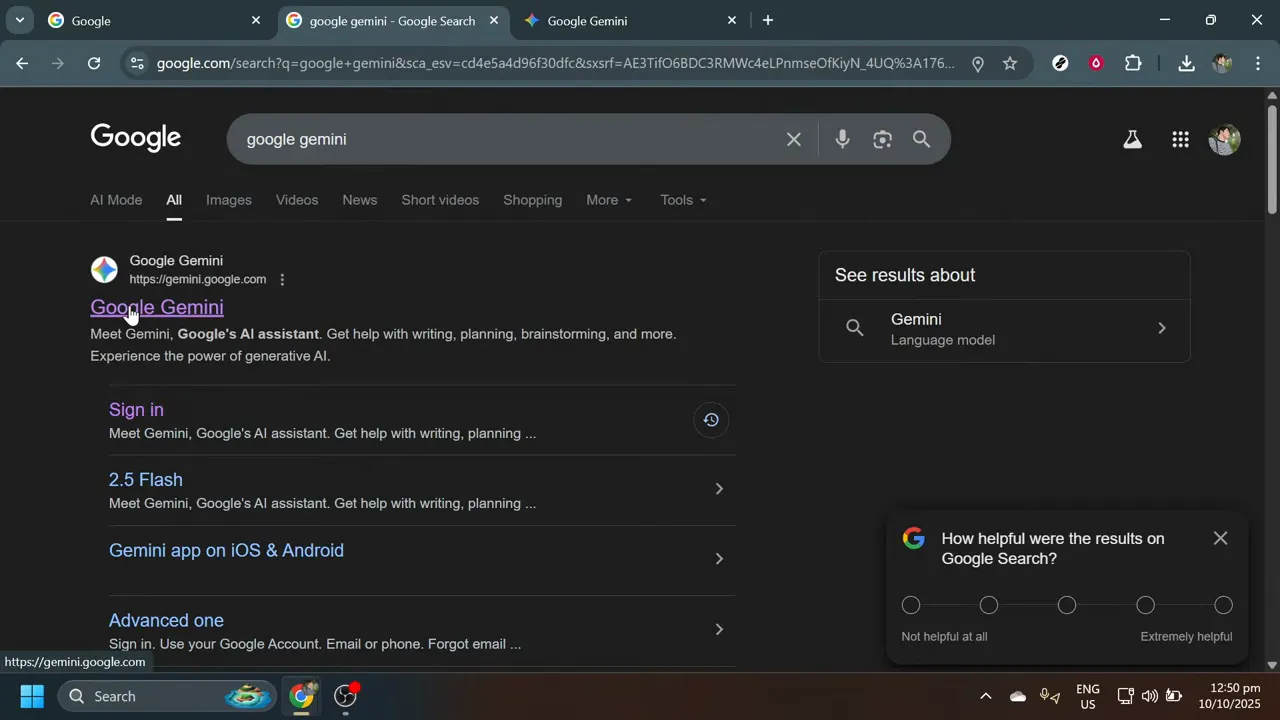
Scan the search results carefully to identify the official Google Gemini link, typically positioned in the top three results. Look for the domain "gemini.google.com" or a similar official Google domain to confirm authenticity. Click the official link to proceed to the Gemini AI dashboard, which serves as the control center for all your AI interactions and app connections.
The page may require a few seconds to load depending on your internet connection speed. You'll see the Gemini AI interface with its characteristic design and branding once fully loaded.
Locate the Settings and Help Option
Direct your attention to the lower left corner of the Gemini interface where you'll find navigation options for managing your experience.
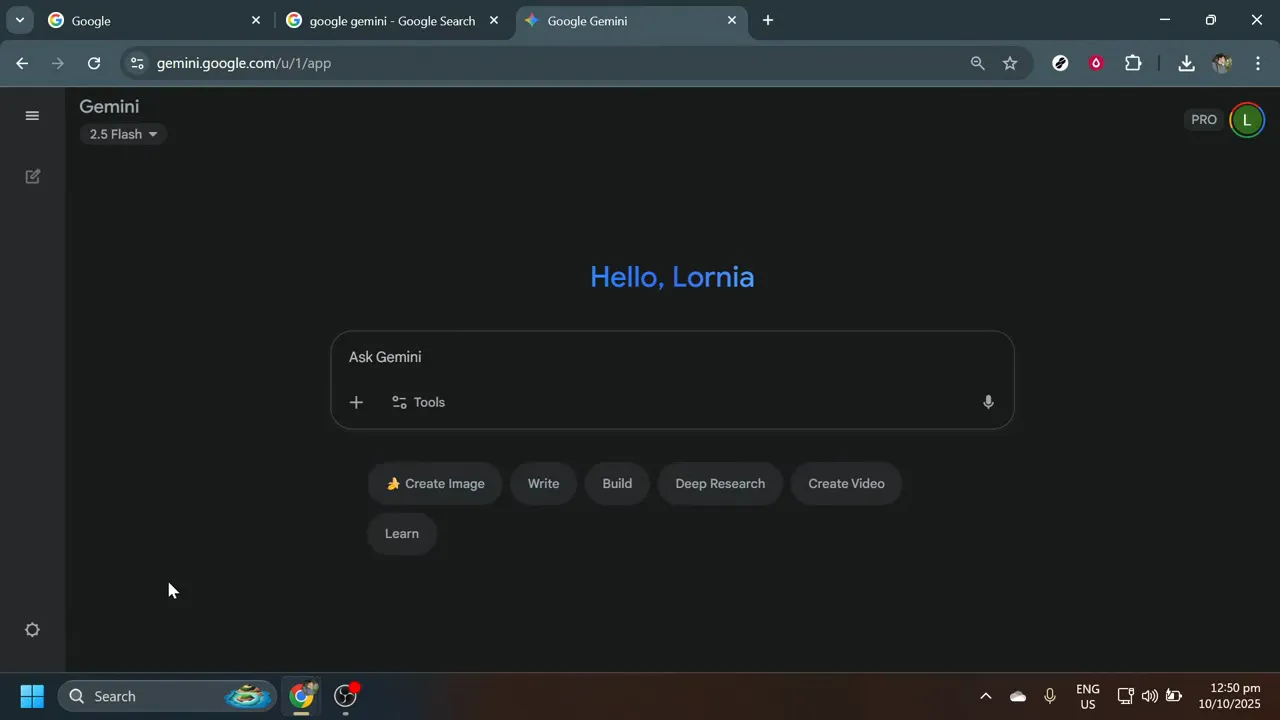
Direct your attention to the lower left corner of the Gemini interface where you'll find navigation options for managing your experience. Look for an option labeled "Settings and Help" or a similar designation with a gear icon or menu indicator. Click this option to open the settings menu, which provides centralized access to all Gemini AI customization options including privacy settings, language preferences, and app integrations.
Open the Connected Apps Section
Within the settings menu, scan the available options until you locate "Connected Apps" or "App Connections.
This connectivity feature enables Gemini to access relevant information from connected services and provide more contextual, helpful responses.
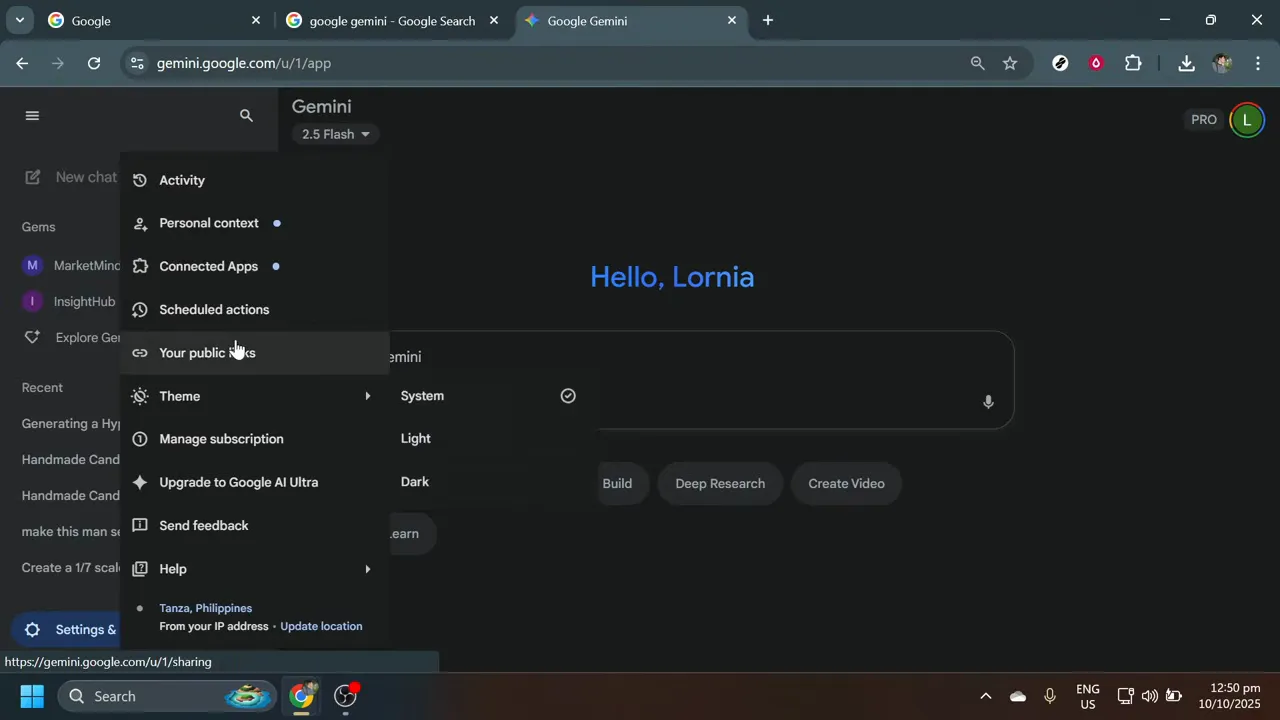
Within the settings menu, scan the available options until you locate "Connected Apps" or "App Connections." This option may appear under a category labeled "Integrations" or "Extensions" depending on interface updates. Click to view the complete list of applications available for integration with Gemini AI.
This connectivity feature enables Gemini to access relevant information from connected services and provide more contextual, helpful responses. The interface displays both currently connected and available applications with toggle controls and connection status indicators.
Review Available Applications
Scroll through the comprehensive list of available applications including Google Workspace (Gmail, Google Docs, Google Sheets, Google Slides), YouTube, Google Maps, Google Flights, Google Hotels, and other Google services.
Scroll through the entire list to see all available integration options.
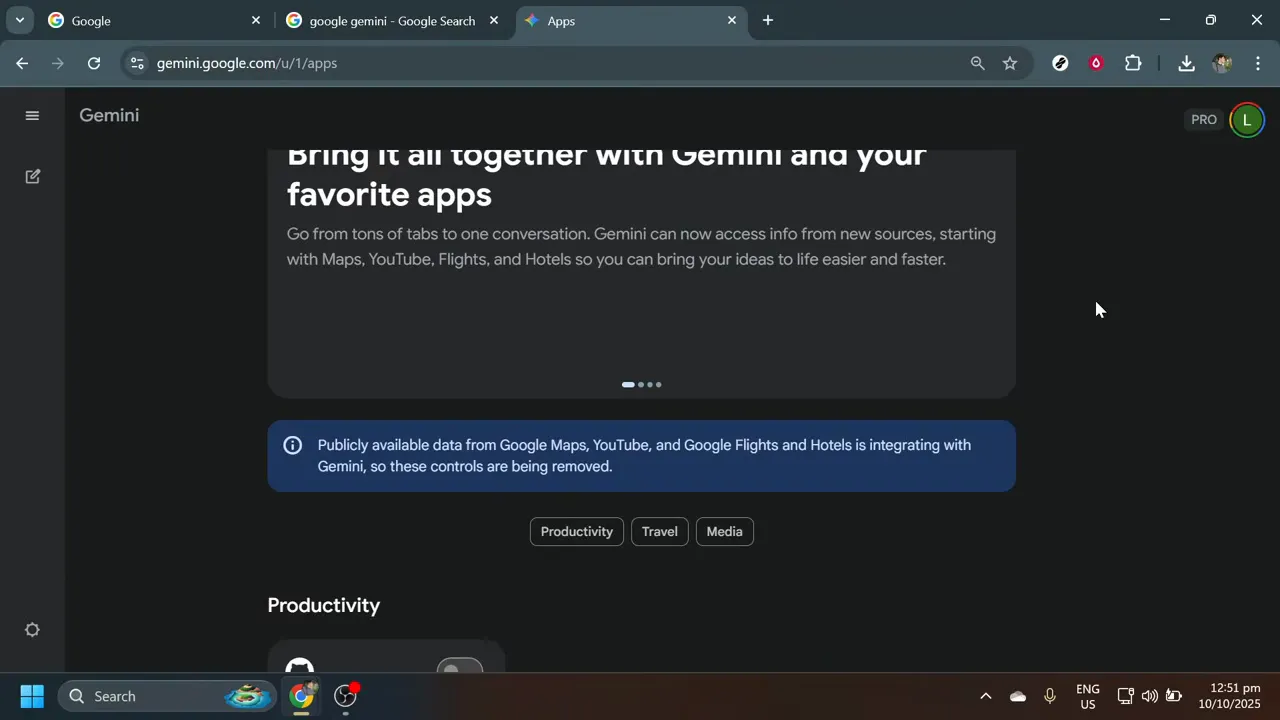
Scroll through the comprehensive list of available applications including Google Workspace (Gmail, Google Docs, Google Sheets, Google Slides), YouTube, Google Maps, Google Flights, Google Hotels, and other Google services. Each application appears with its icon and name for easy identification. Familiarizing yourself with the available options helps you make informed decisions about which integrations align with your workflow—for example, YouTube integration enables Gemini to search and reference video content, while Workspace integration provides access to your documents and emails.
Scroll through the entire list to see all available integration options. Some apps may include information icons explaining the specific capabilities each connection unlocks.
Connect Your Desired Applications
Locate the on/off toggle button positioned next to each app name to control that application's connection status.
During connection, you may see a loading indicator or progress message as the system communicates with the selected app's servers to establish the authorized connection.
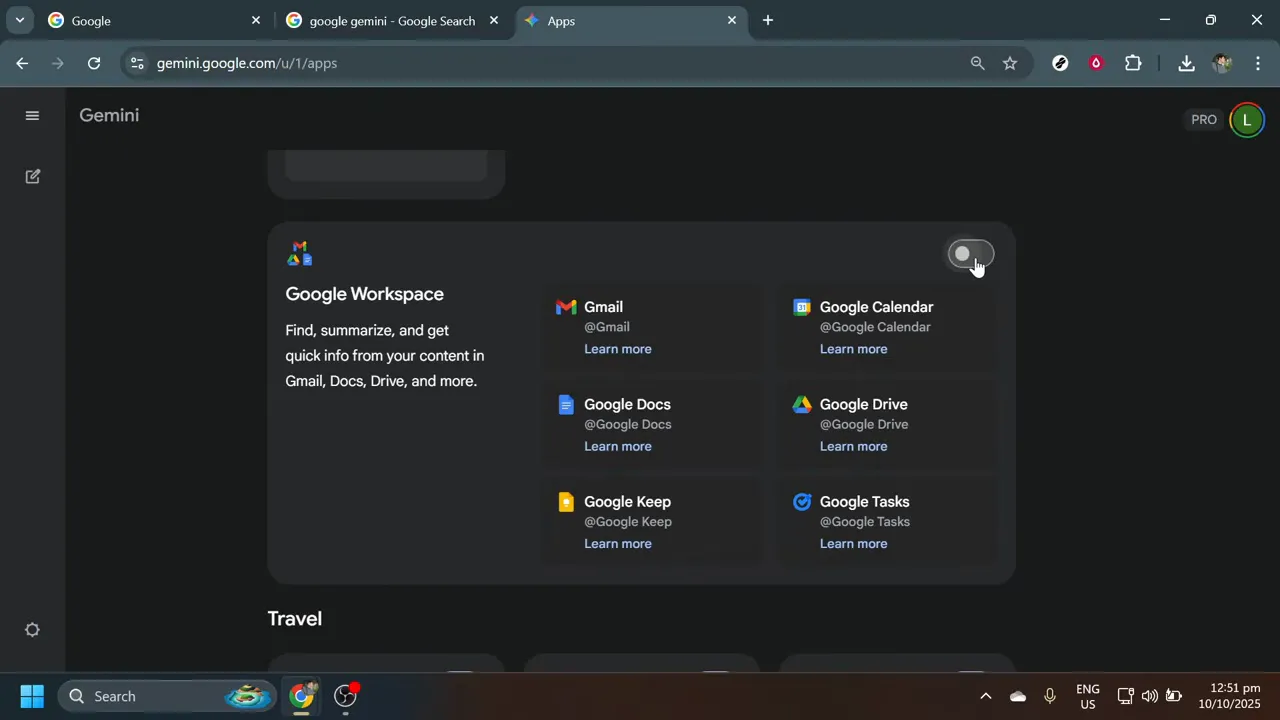
Locate the on/off toggle button positioned next to each app name to control that application's connection status. Click the toggle to move it to the "on" position for any app you wish to link with Gemini AI. A prominent "Connect" button will appear either next to the app or in a confirmation dialog—click this to initiate the formal linking process.
During connection, you may see a loading indicator or progress message as the system communicates with the selected app's servers to establish the authorized connection.
Grant Necessary Permissions
After clicking Connect, Gemini AI will prompt you for any necessary permissions or authentications required by the specific app.
Read each permission request carefully to understand what data access you're authorizing.
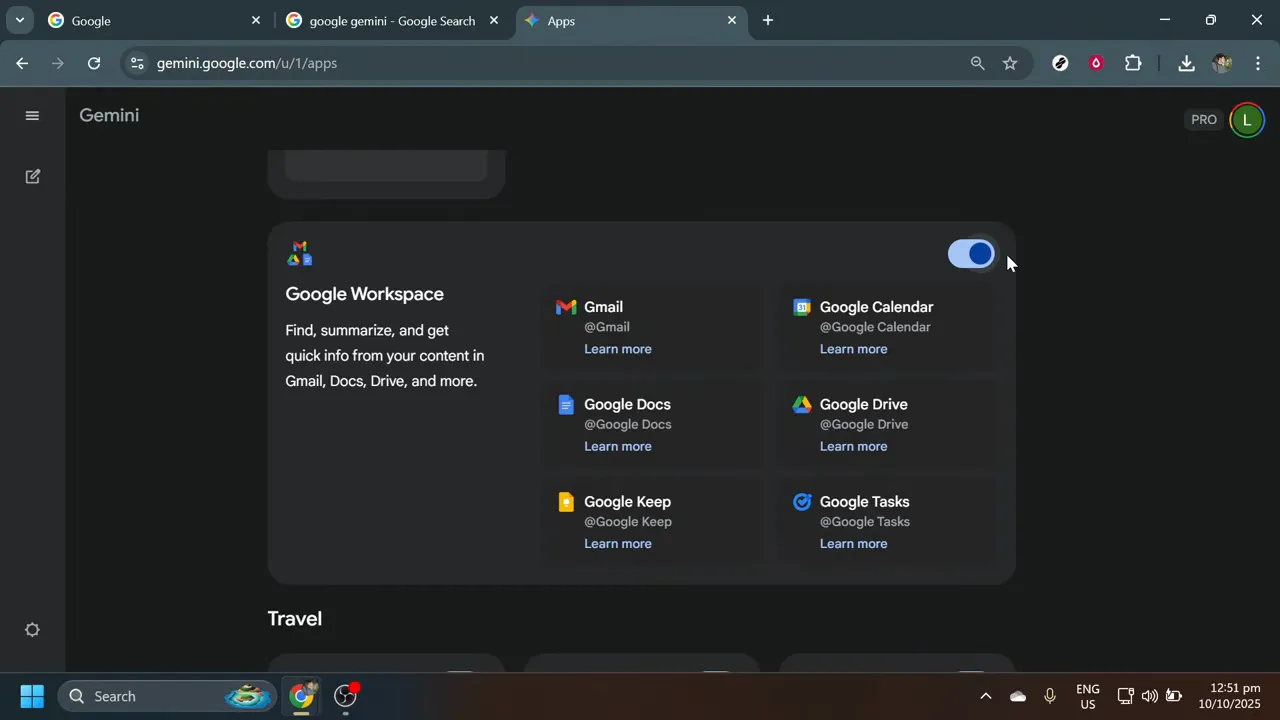
After clicking Connect, Gemini AI will prompt you for any necessary permissions or authentications required by the specific app. These permission requests are security measures ensuring you explicitly authorize Gemini to access data from the connected service. A permissions dialog will appear explaining what access Gemini is requesting.
Read each permission request carefully to understand what data access you're authorizing. Click Allow, Accept, or Grant Access buttons depending on the specific app. Google's permission system is designed to be transparent about data usage. Once permissions are granted, the app connection finalizes and you'll see a confirmation message.
Add Additional App Connections
To link additional applications, return to the list of available applications by scrolling back through the connected apps section.
You can connect as many apps as you find useful with no arbitrary limits.
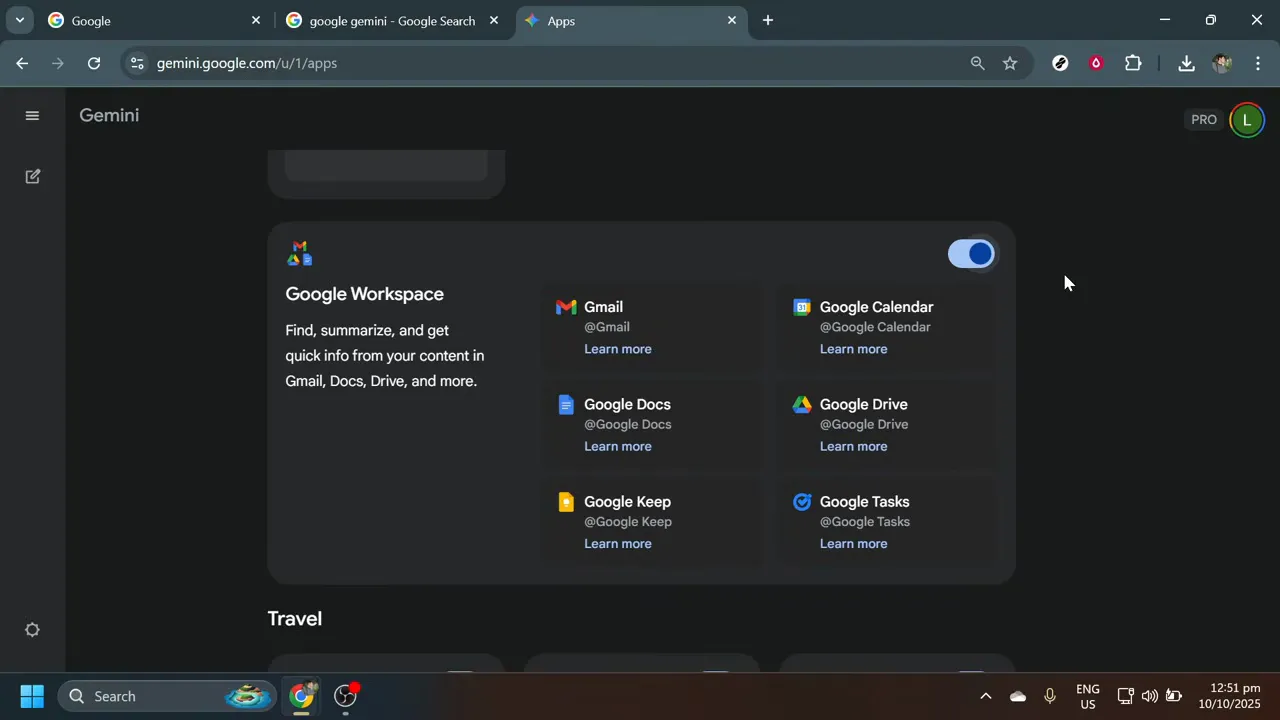
To link additional applications, return to the list of available applications by scrolling back through the connected apps section. Review the remaining apps and identify any others that would enhance your Gemini AI experience. Repeat the scanning, toggling, and connecting process for each additional app you want to integrate.
You can connect as many apps as you find useful with no arbitrary limits. Each new connection expands Gemini AI's ability to assist across different aspects of your digital workflow. Consider connecting all Google services you use regularly for maximum benefit.
Verify Your Connected Apps
After connecting your desired applications, confirm that all connections are active and functioning properly.
Test the connections by returning to the main Gemini chat interface and asking questions that require access to the connected services.
After connecting your desired applications, confirm that all connections are active and functioning properly. Scroll through your connected apps list and verify that the toggle switches for your selected apps are in the "on" position. Each connected app should display a "Connected" status or similar confirmation indicator.
Test the connections by returning to the main Gemini chat interface and asking questions that require access to the connected services. For example, if you connected Google Workspace, ask Gemini about a recent document or email—the AI should access and reference that information. If any connection appears inactive or isn't working as expected, return to the connected apps section to troubleshoot by disconnecting and reconnecting the problematic app.
Conclusion
You've successfully connected Gemini AI with your Google applications, creating a powerful integrated ecosystem. This integration enables Gemini to provide more contextual, personalized assistance by accessing relevant information from your connected services. You can now use Gemini AI's capabilities within your existing suite of Google tools.
The connections you've established enhance your productivity by allowing Gemini to assist with tasks across multiple platforms. Whether you're searching YouTube content, finding locations on Maps, or working with Workspace documents, Gemini provides intelligent support. These integrations make daily tasks easier to manage and more efficient to complete.
Return to the connected apps section at any time to add new connections, remove existing ones, or adjust permissions. Your integration setup is flexible and can evolve as your needs change.
Copy-paste prompts that work
Each prompt has been tested and optimized for this workflow. Customize the bracketed sections.
Find my recent emails from [contact name] about [project topic]
Summarize the document titled [document name] in my Google Drive
Show me YouTube videos I watched last week about [topic]
Find the address for [location name] on Google Maps and give me directions
What flights are available from [origin] to [destination] next month?
Create a summary of my meeting notes from [date] in Google Docs
Help me draft an email response based on the message from [contact name] on [date]
What are the top trends in [topic] from videos published in the last month?
Gemini Technical Specifications
| Free Tier | ✓ Yes |
| Api Access | ✓ Yes |
| Mobile App | ✓ Yes |
| Voice Mode | ✓ Yes |
| Web Search | ✓ Yes |
| File Upload | ✓ Yes |
| Code Execution | ✓ Yes |
| Context Window | Up to ~1M tokens on select models; 32K+ on free tier for guided learning |
| Image Generation | Built-in Google image generation and editing |
| Plugins Extensions | ✓ Yes |
| Context Window Desc | Free users typically get tens of thousands of tokens per session, while paid tiers and Pro/Ultra models can handle very long documents, codebases, and research packs. |
Common issues
Go further
This matters when you want Gemini to access some features of an app like Google Workspace but not others—for example, allowing access to Docs but not Gmail, giving you precise control over your privacy preferences.
This is important for workflow efficiency because it means your carefully configured integrations work consistently across all your Gemini interactions, whether you're using the web interface, mobile app, or Gemini within other Google services.
This cross-app functionality becomes powerful for complex workflows where you need to synthesize information from multiple sources, making Gemini act as an intelligent bridge between your various Google services rather than treating each as an isolated tool.
More tutorials

Works well with this

Essential for Gemini to access and summarize your stored documents after establishing the Google Workspace integration.
Enables Gemini to analyze spreadsheet data and provide insights when connected through Google Workspace integration.

Complements Gemini integration by allowing AI-powered assistance within team communication workflows.
This tutorial was created by Joshua Kishaba and produced using AI-assisted editorial tools. All recommendations reflect genuine editorial opinion based on hands-on testing. This page may contain affiliate links — see our full disclosure.